Sidebar

Home


Knowledge Base


Guides & Tutorials

Projects

Samples

kb:tutorials:easy:how_to_install_and_configure_python

How to install and configure Python

Embedded Python installation

Download Windows embeddable package .zip file from Python download page.
If you use 64-bit TNG then you need 64-bit Python version.
If you use 32-bit TNG then you need 32-bit Python version.


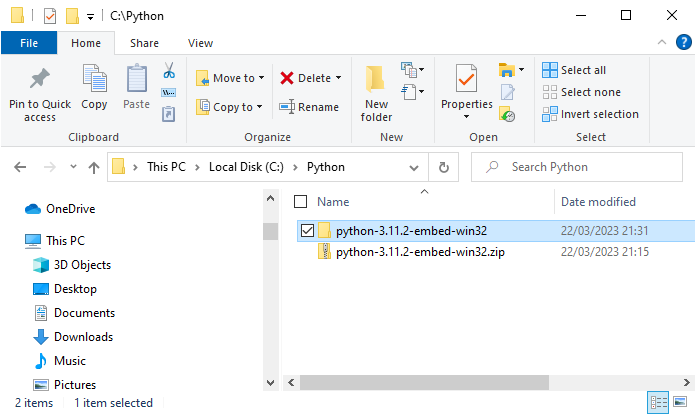
Unzip .zip file to folder where your embeddable Python will be. In my case this is 'C:\Python\python-3.11.2-embed-win32'.


Open folder and find main library .dll file. In my case it is 'python311.dll'. If you use different Python version it will be different but similar.
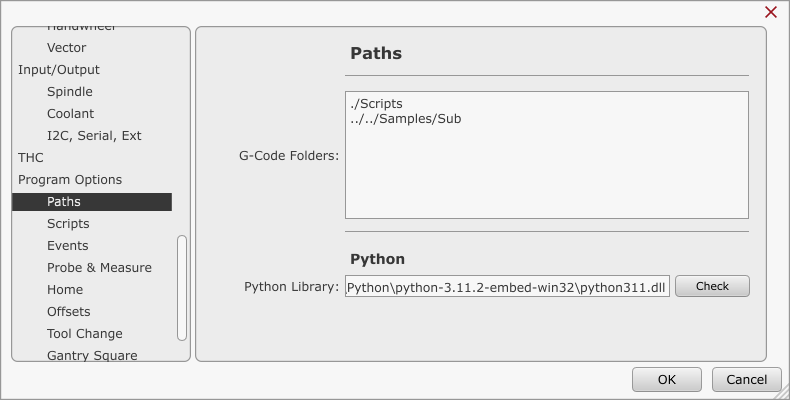
Full path is therefore 'C:\Python\python-3.11.2-embed-win32\python311.dll'.


Open TNG, go to settings and set this path as 'Python Library'.


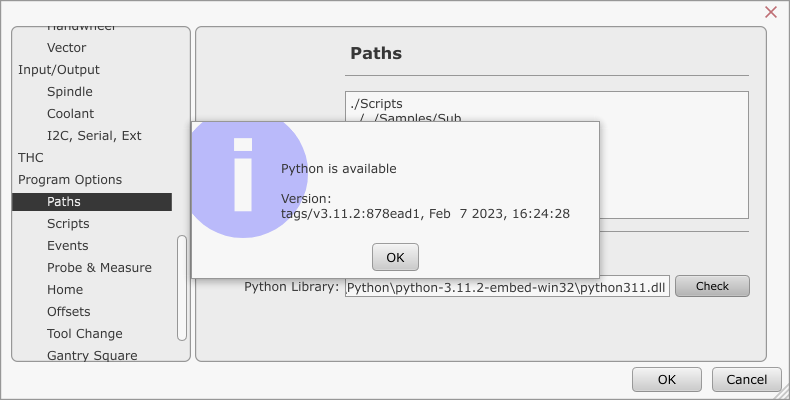
Check if installation was successful and that Python is available to TNG by clicking 'Check' button. You should see dialog showing your Python version.


If Python is available then you can use it with TNG. It is recommended that you restart TNG after changing 'Python Library' setting.


Adding modules to embedded Python

Python can use various 3rd party modules. To use them, you need to install them to your embedded Python.


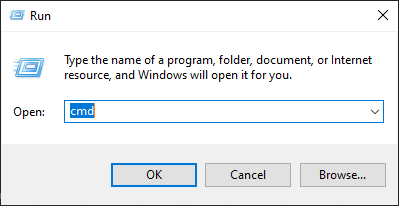
This is done with command prompt. Open new command prompt using 'Run' and then typing 'cmd.


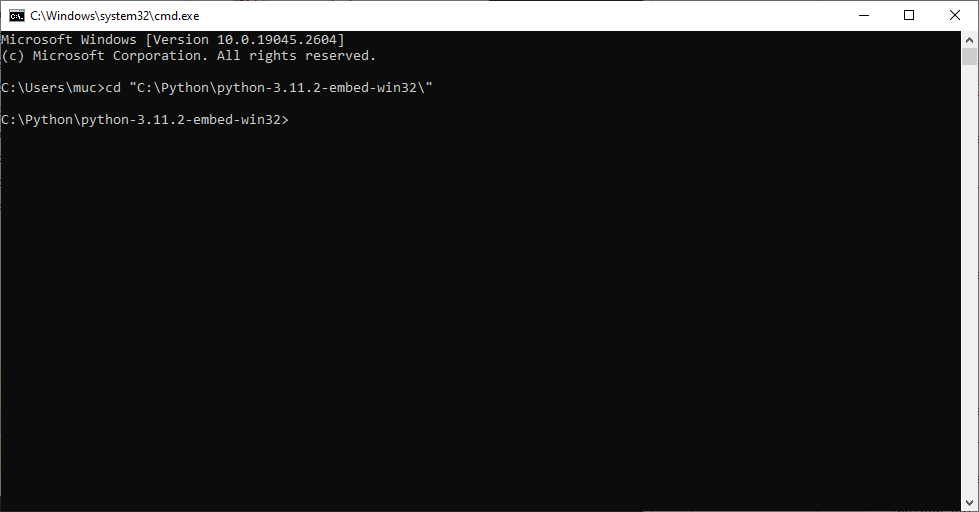
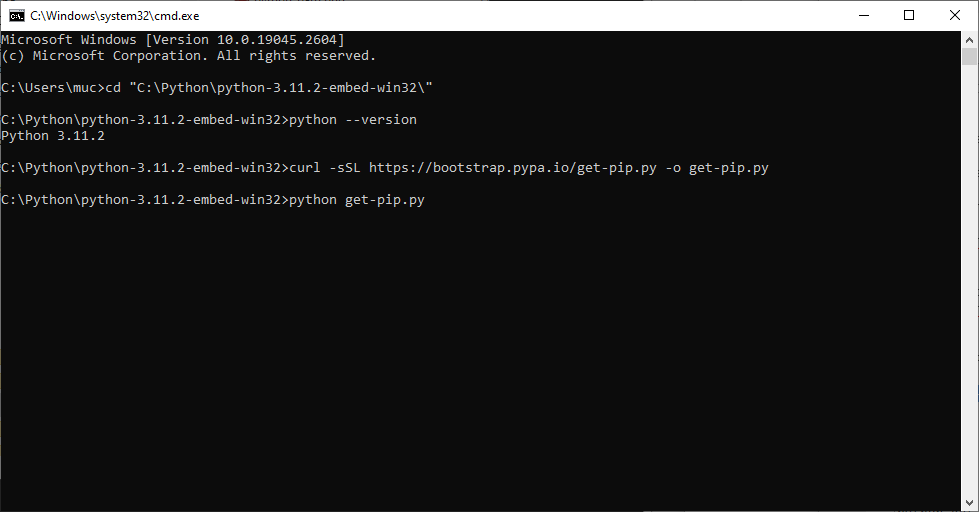
Change directory to your embedded Python installation with 'cd' command.
In my case it is:

cd "C:\Python\python-3.11.2-embed-win32\"


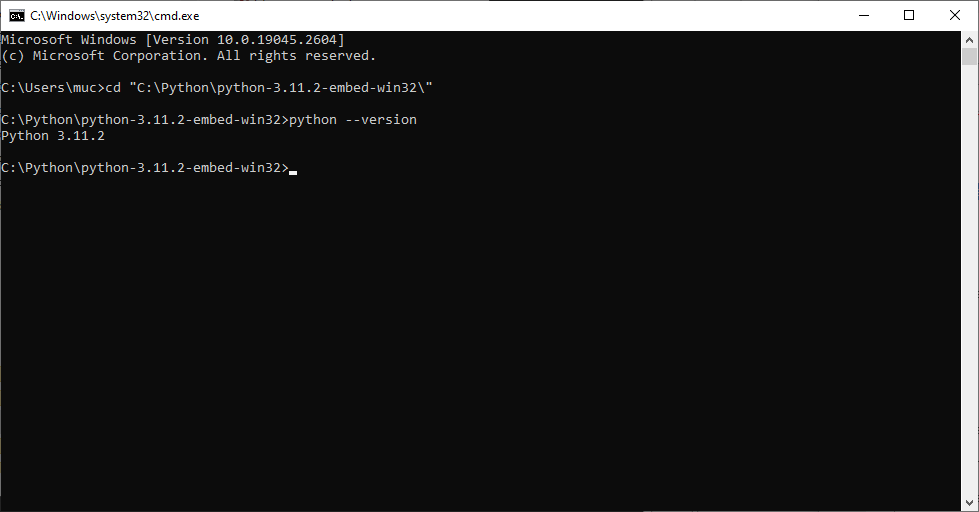
Check that Python is working by using command:

python --version


You should see your Python version.


Then you need to install PIP. PIP is package manager used by Python to install modules.
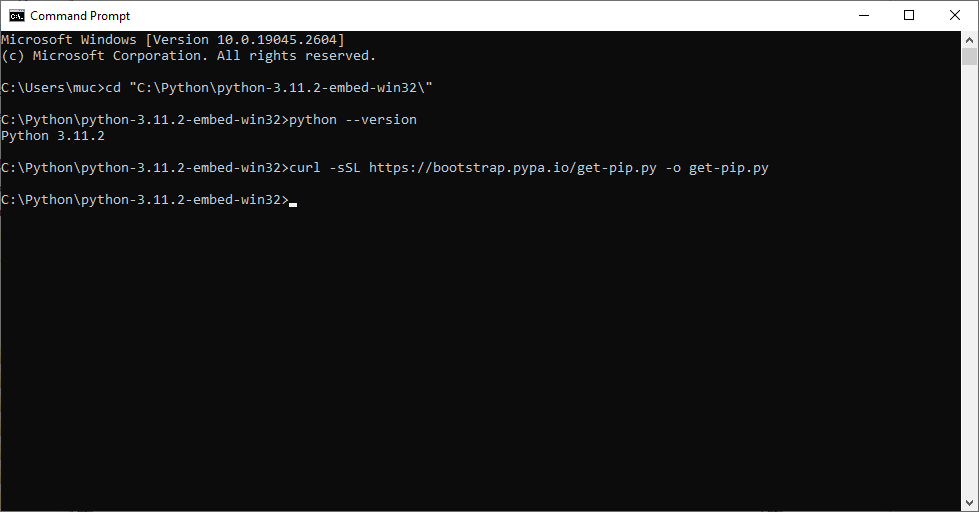
To do this you need to download file named 'get-pip.py' from https://bootstrap.pypa.io/get-pip.py.
You can use 'curl' command which is included with Windows 10. You can also use other way to get this file.

curl -sSL https://bootstrap.pypa.io/get-pip.py -o get-pip.py


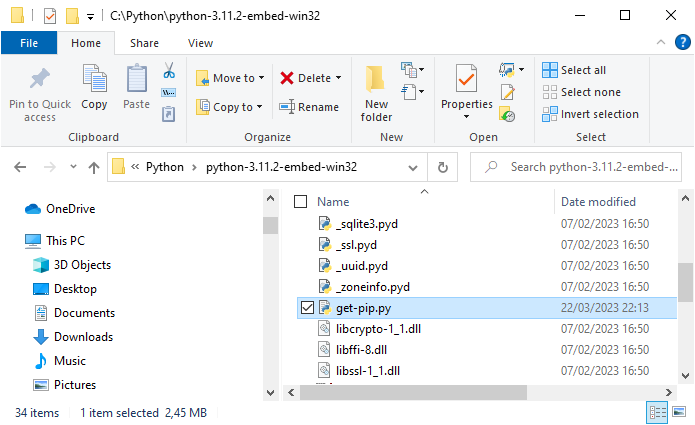
Make sure that get_pip.py file was successfully downloaded.


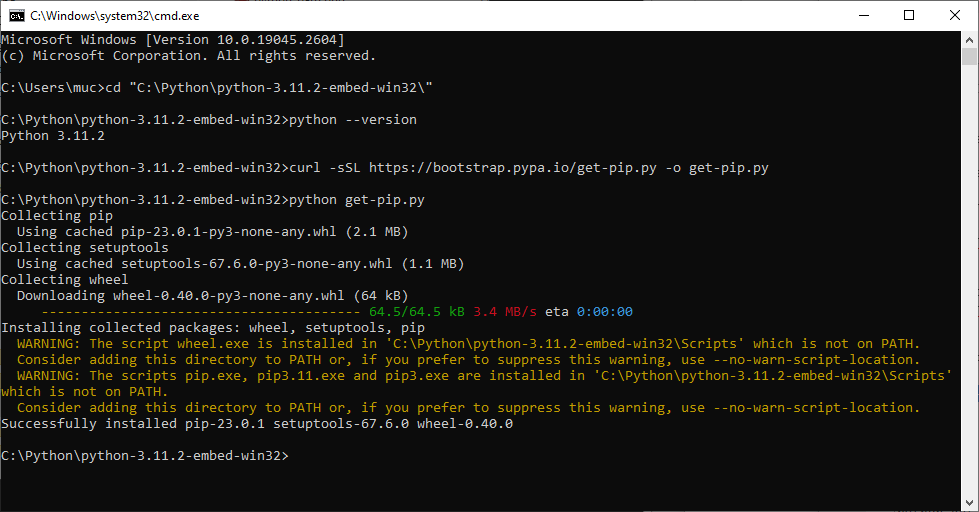
Install PIP using command:

python get-pip.py


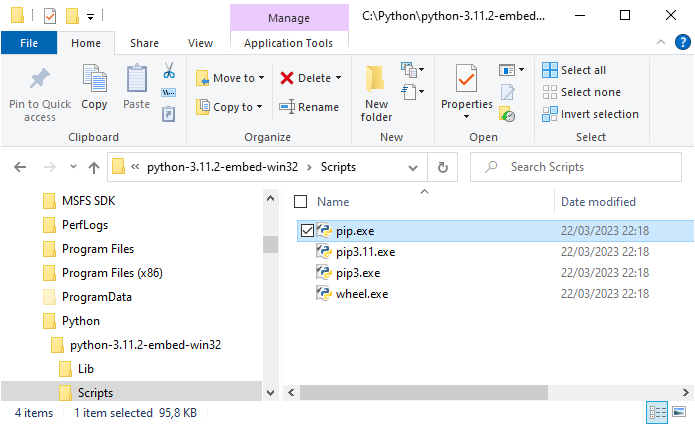
Make sure installation was successful.

If it was then pip.exe is located in subfolder named 'Scripts'.

If PIP is already installed and you just need to upgrade it use command:

python -m pip install --upgrade pip


Open 'python311._pth' file with text editor.
Add two path lines lines:
 .\Lib
 .\Lib\site-packages
Uncomment (remove # character) from line 'import site':
It should look like this:

python311.zip
.
.\Lib
.\Lib\site-packages

# Uncomment to run site.main() automatically
import site


Now we can use PIP to install Python modules.
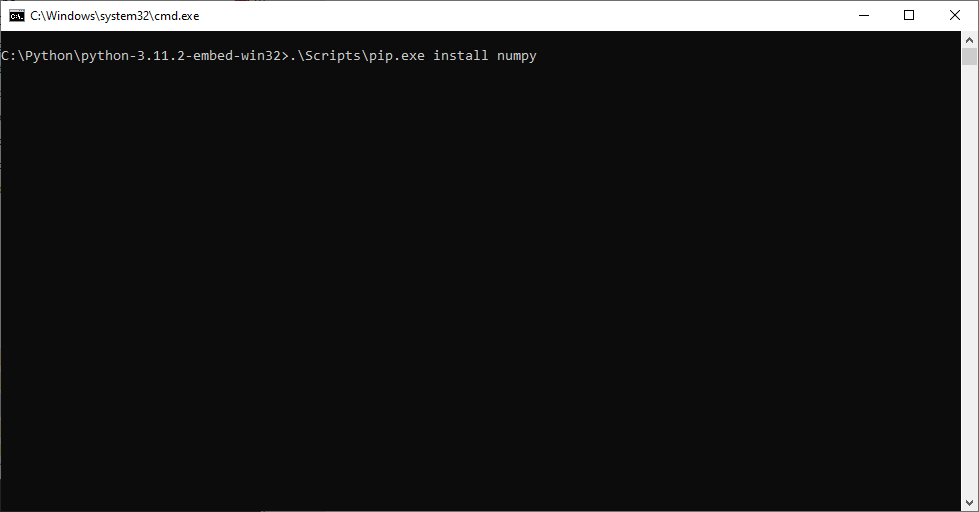
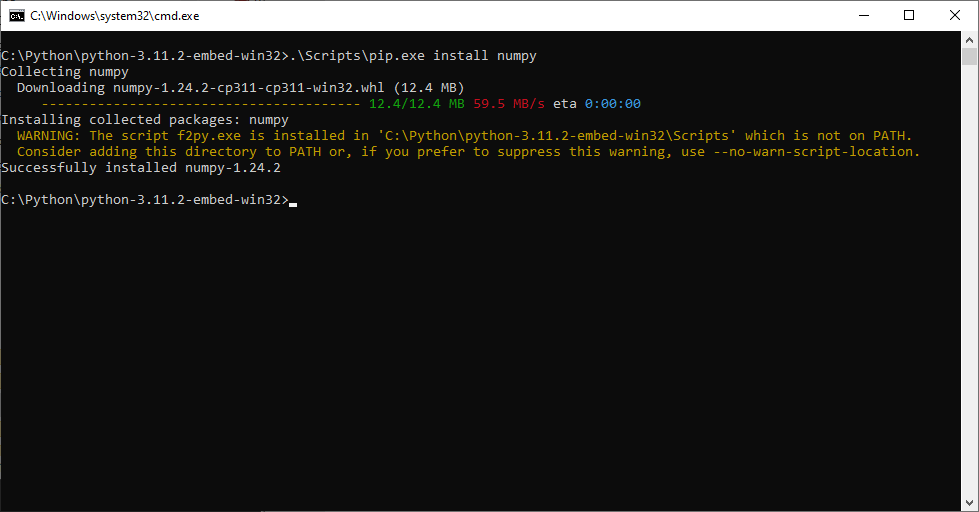
I will install 'NumPy' which offers comprehensive mathematical functions, random number generators, linear algebra routines, Fourier transforms, and more.

.\Scripts\pip.exe install numpy


Make sure there were no errors:


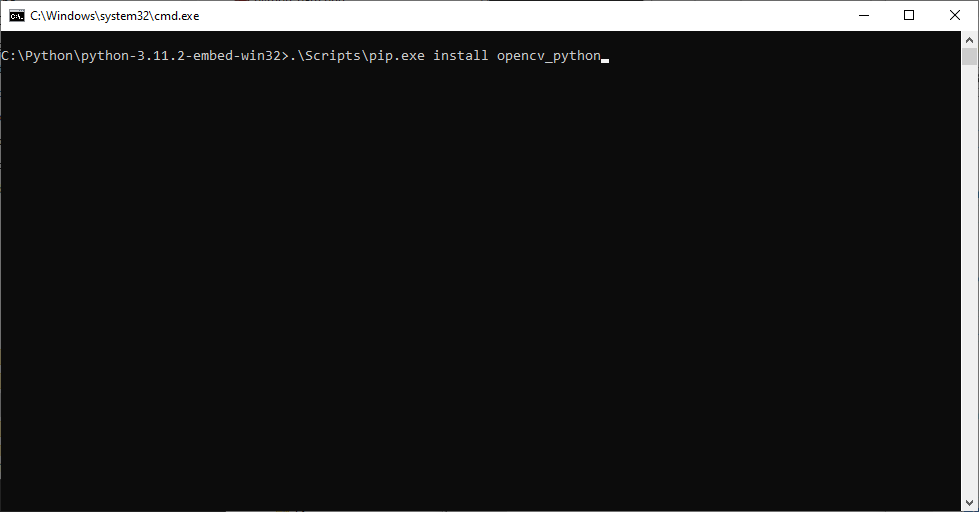
I will also install 'OpnenCV' which is a real-time optimized computer vision library.

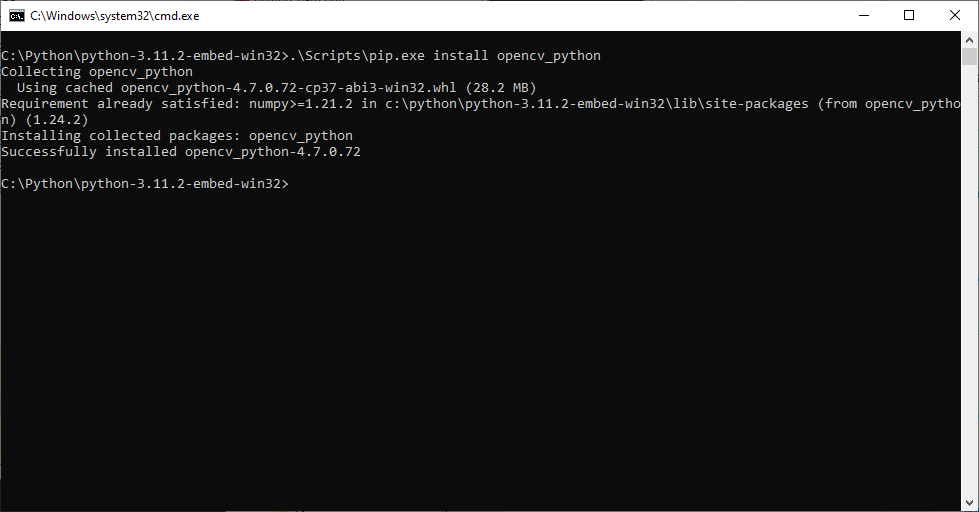
.\Scripts\pip.exe install opencv_python


Make sure there were no errors:


You have successfully added two modules you your embedded Python installation.

You can create Python script to check if 'OpenCV' runs correctly. You need webcam for this test to work.
Create test file in your Python folder named 'OpenCV.py'.
Add this content:

#! /usr/bin/env python
 
import cv2
import numpy as np
import planetcnc
 
def start_opencv():
	print(f"OpenCV version: {cv2.__version__}")
	backends = cv2.videoio_registry.getBackends()
	print("Available OpenCV VideoCapture Backends:")
	for backend_id in backends:
		backend_name = cv2.videoio_registry.getBackendName(backend_id)  
		print(f"- {backend_name}")
 
	#cap = cv2.VideoCapture(0)
	#cap = cv2.VideoCapture(0, cv2.CAP_MSMF) #Windows (def) - might be slow
	cap = cv2.VideoCapture(0, cv2.CAP_DSHOW) #Windows - prefered on Windows
	#cap = cv2.VideoCapture(0, cv2.CAP_V4L2) #Linux (def)
 
	if not cap.isOpened():
		print("Error: Could not open camera.")
		return
 
	backend = cap.getBackendName()  # Get the backend name
	print(f"Using backend: {backend}")
 
	while(1): 
		# Capture image
		ret, image = cap.read() 
		if not ret:
			print("Error: Could not read frame from camera.")
			break
 
		# Convert image to grayscale
		img_gray = cv2.cvtColor(image, cv2.COLOR_BGR2GRAY)
 
		# Find canny edges
		edges = cv2.Canny(img_gray, 30, 200)
 
		# Find contours
		contours, hierarchy = cv2.findContours(edges, cv2.RETR_EXTERNAL, cv2.CHAIN_APPROX_NONE)
 
		# Get image center
		h, w = image.shape[:2]
		img_center = (w // 2, h // 2)
 
		closest_contour = None
		min_distance = float("inf")
		closest_coords = (0, 0)
 
		for contour in contours:
			# Compute centroid using image moments
			M = cv2.moments(contour)
			if M["m00"] != 0:
				cX = int(M["m10"] / M["m00"])
				cY = int(M["m01"] / M["m00"])
 
			# Compute Euclidean distance to the image center
			distance = np.sqrt((cX - img_center[0]) ** 2 + (cY - img_center[1]) ** 2)
 
			# Check if this is the closest object
			if distance < min_distance:
				min_distance = distance
				closest_contour = contour
				closest_coords = (cX, cY)
 
		# Draw the closest object
		if closest_contour is not None:
			cv2.drawContours(image, [closest_contour], -1, (0, 255, 0), 2)
 
			# Draw text next to contour
			rel_x, rel_y = closest_coords[0] - img_center[0], closest_coords[1] - img_center[1]  # Compute relative coordinates
			text = f"({rel_x}, {rel_y})"
			cv2.putText(image, text, (closest_coords[0] + 10, closest_coords[1]), cv2.FONT_HERSHEY_SIMPLEX, 0.5, (255, 0, 0), 2)
 
 
		# Draw all contours (-1 means drawing all contours)
		#cv2.drawContours(image, contours, -1, (0, 255, 0), 1)
 
		# Show 
		cv2.imshow('Contours', image)
 
		# Wait for a key press (1ms delay)
		key = cv2.waitKey(1)
 
		if cv2.getWindowProperty('Contours', cv2.WND_PROP_VISIBLE) < 1:
			break
 
		if key & 0xFF == 27:  # Allow quitting with 'ESC'
			print("Window closed by pressing 'ESC'.")
			break


	cv2.destroyAllWindows()
	cap.release() 
 
# Run function
start_opencv()


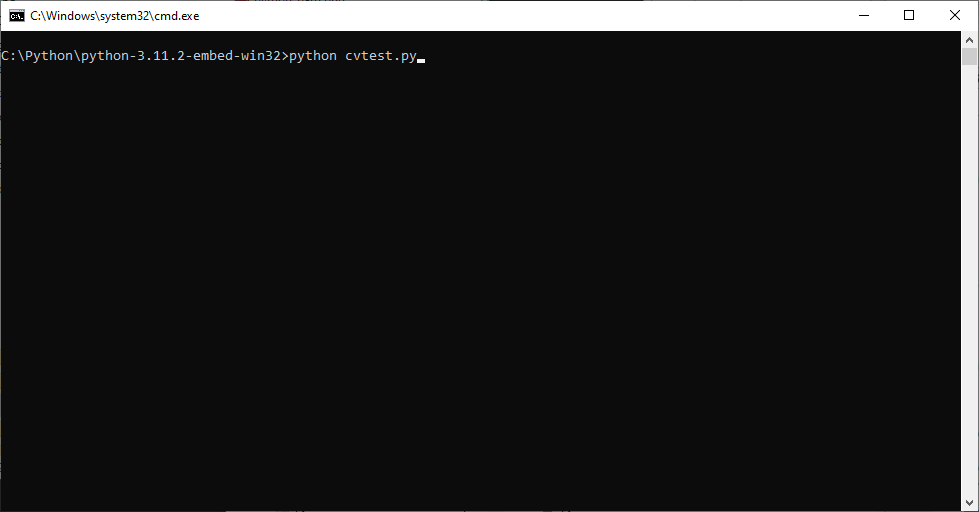
Save file and run it with with:

python OpenCV.py

of from MDI:

=py("Python/OpenCV.py", 0);


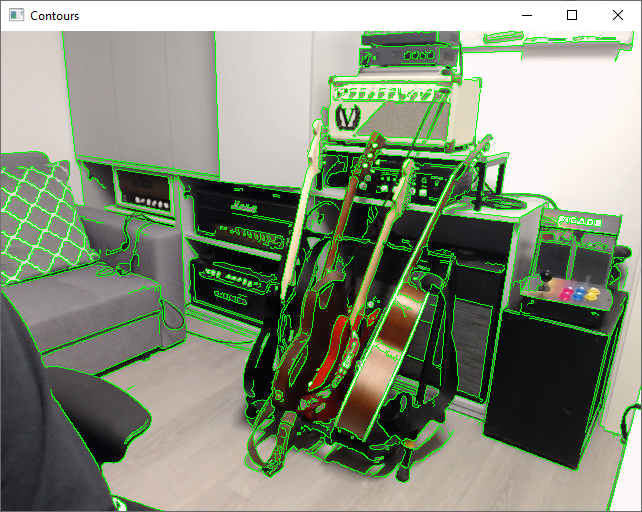
After few seconds window with 'OpenCV' video stream will show.

Enjoy!

kb/tutorials/easy/how_to_install_and_configure_python.txt · Last modified: by andrej

Page Tools